May 4

I just saw this article:

http://www.tomshardware.com/news/SFF-RAID-HDD,10319.html

It’s an amazing feat by Will Urbina.  He has an amazing tool shop and knowledge on how to use them.  He custom built his own Small Form Factor case that holds 8 2TB drives for a total of 14 TB raided.  Pretty amazing.

I would count this as a great version 1.0 product.  The two changes I would make for v2.0 would be:

1) Accessibility: I would mount each drive into a removable tray. Changing the drives out is going to be a bear. Having removable trays would not only make this a snap but also allow for hot swapping, a real help when dealing with RAID failures. If you can get a tray with built-in heat sinks for the drive that will lead nicely into my next recommendation.

2) Heat: The heat issue should easily be solved by putting heat-sinks on the drives (or heat-sink trays as mentioned above). Then simply seal the box, put vents on the front left side and channel the air through the front left, across the drives to the right and through the back. The drives will need more spacing to accommodate the trays and airflow but maybe you could switch to 2.5 drives. This will definitely take some engineering, especially to work around removable drive trays, but proper sealing and a good fan in the back would give a good airflow. May need to increase fan speed or add additional fans to the front intake.


Awesome idea.  I have a few tools in my tool shop, some of which were gifts, others bought new for projects, and others picked up on Craig’s List or garage sales.  With only a 2 car garage and 3 young kids I have no workshop. :)   But, I have the dream of slowly adding to my tools each year and someday building a sizable work shed in the back.  I would love to be one of those dads that has tools and builds things with their kids.  I always envied my friends who had this and their dad’s shop at their disposal for inspired ideas or school projects.

Ideas like this keep me hoping that this will be a reality someday.

Great job Will!

Apr 20

Microsoft just released information regarding their new cloud management service for small organizations, Microsoft Intune.  you can read about it on their blog post here.

It’s geared towards smaller companies that have between 25 and 2,500 PCs that may not be able to afford a standard IT infrastructure and server deployment.  Honestly, with some of my clients using SBS 2003 with a decent IT consultant (me :) ) companies with as little as 15 machines can easily make use of the standard Microsoft infrastructure.  If you’re beyond 100 PCs I don’t know how you would ever manage this effectively without having Windows Server, Active Directory and many of the management tools such as WSUS and a managed virus/malware setup.  But, that’s beyond the point.

What is Microsoft Intune and what does it do for you?  Here are the basics:

  • Manage PCs through web-based console: Windows Intune provides a web-based console for IT to administrate their PCs. Administrators can manage PCs from anywhere.
  • Manage updates: Administrators can centrally manage the deployment of Microsoft updates and service packs to all PCs.
  • Protection from malware: Windows Intune helps protect PCs from the latest threats with malware protection built on the Microsoft Malware Protection Engine that you can manage through the Web-based console.
  • Proactively monitor PCs: Receive alerts on updates and threats so that you can proactively identify and resolve problems with your PCs—before it impacts end users and your business.
  • Provide remote assistance: Resolve PC issues, regardless of where you or your users are located, with remote assistance.
  • Track hardware and software inventory: Track hardware and software assets used in your business to efficiently manage your assets, licenses, and compliance.
  • Set security policies: Centrally manage update, firewall, and malware protection policies, even on remote machines outside the corporate network.
  • Licensing to upgrade all your PCs to Windows 7 Enterprise.  Includes all applicable upgrades to the latest Windows as well as downgrades while you are under the subscription.

Intune is only in beta at the moment.  You can sign up here until May 16th.  It isn’t scheduled to be released in production until next year.  At that time it will be a subscription based service, most likely ona per PC basis. 

A few things of note:

  • The tracking of hardware and software would be nice.  I don’t know if this only tracks PCs or if it also tracks hardware like printers and network appliances and I’m not sure if it tracks non-Microsoft software.  We’ll have to wait and see how thorough their system is.
  • Setting of security policies seem to be limited to templates that affect security settings like Windows Firewall, updates, etc.  It doesn’t seem to be a full fledged Active Directory Group Policy infrastructure. 
  • Allowing the upgrading of all of your PCs to Windows 7 enterprise is a pretty great deal.

Not a replacement for Small Business Server

I don’t see this as a replacement for SBS.  Honestly, I don’t really see anything that can’t already be accomplished by a decent network setup by an IT consultant, and that you don’t have to pay a monthly fee for.  You still have to have someone knowledgeable (or your IT consultant) to handle the setup and monitoring of Intune, so you aren’t getting rid of your IT guy, just adding the management layer on top of your current network.

What does SBS do that Intune doesn’t do?  Pretty much everything else.  It gives you a full fledged AD infrastructure, user/group/hardware authentication/authorization, shared resources such as folders/printers, Exchange, SQL Server, IAS, etc.

Microsoft already makes Exchange available as a subscription based service, though I don’t know if this is technically in the MS Azure cloud yet.  Azure currently also is starting to handle the SQL space. 

I think Intune will really be able to fill the small business space when I can have a SBS server locally to handle shared resources and local caching of my AD/DNS, but then offload everything else to the cloud, including my licensing management of all my MS products including Windows, Office, etc, AD management, GPO management, intranet, etc.  Then this might really be a full on solution that I could see businesses shelling out $50 annually a computer for.

So, am I signing up for the beta?  Yeah, why not.  I’d really like to see how this works out and where it’s headed.  One of my clients is due to renew their annual license for their virus vendor and we haven’t been that happy lately with the product.  So, this will give us a chance to try out the Microsoft offering for little cost (if anything) and see if this really lets me manage the network better.  Having the remote access through Silverlight will be nice.  That way I don’t have to remote into the server and then remote from there.  Until I see actual estimates on licensing though I will be hesitant to upgrade the PCs to Windows 7.

Feb 11

I understand that everything is going widescreen these days for media.  That’s great when I want to watch HD movies or the super bowl in HD.  However, I still have no idea why this is the current trend for computer monitors.

Maybe if I was a college kid living in a dorm room and my laptop/desktop was my main display for watching tv/movies, but it’s not.  It’s my main display for actually doing office work and development.  I have two 20” Dell monitors (non-widescreen) that have a maximum resolution of 1200×1600.  I love working on them. I can display full page Word documents with ease and developing is wonderful.  Having ample pixels to work with in height is just as important to me as a high performance machine.

Our department just ordered a new set of laptops for our users.  I’m not in IT so we have them give us their recommendations and order from that.  It turns out that they don’t have the time to nitpick every order so Dell has set up a new service where they have their current business model machines set to go and our IT department just clicks the order button. 

What kind of monitor did we get with our new business class laptop and docking station?  A widescreen Dell 19” E1910H.  It has a maximum resolution of 1280 by 720.  720 pixels in height?  Ouch.  That’s less than a standard 15” monitor with a resolution of 1024 x 768.  Today’s standard (in my opinion) for office machines would be 1280 x 1024 or more.

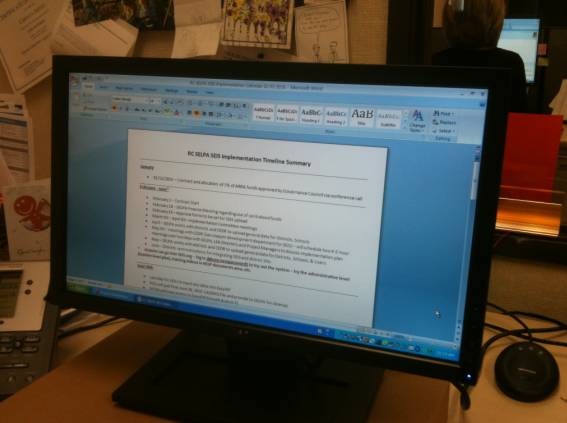
Here is a picture of the monitor with a Word document at 100%.  You can barely see half the page:

clip_image002

Here is a picture of the monitor with a Word document at full screen.  It’s hard to tell in the picture but you can’t read the text.  this might be nice for an Excel user but for documents it’s terrible.

clip_image002[4]

Oh, notice the stand too.  Do you like the cardboard box underneath?  The stand only allows a slight tilt up or down.  It has no height adjustment or rotation.  In my opinion the Dell P190S is a much better office class monitor.  It has a maximum resolution of 1280×1024 and a stand that tilts, pivots and has height adjustment along with the usual extras like multiple inputs and USB ports. 

In the end I can say it was my fault for not verifying the details on every single line item (there are like 40 on a Dell order) but isn’t that the point of having Dell offer their recommended office equipment, so that my IT department or I doesn’t have to spend the time to do this?

Jan 13

In my last post I talked about wanting to move my entire computing environment over to VHDs.  Not just a development environment or test environments but everything.  This would include a general work VHD for my wife and I, a video production VHD for all my video stuff, a production development VHD, various server VHDs (mostly for use during development using Virtual PC) and whatever test VHDs I want.  I would no longer be booting into a standard operating system installation as we have been since the beginning of personal computers.

Some of you might be thinking,”Why in the world do this?”  Well, the last time I had to rebuild a computer it took approximately 2 days.  This included installing the O/S, MS Office, developer tools, all my utilities, plug-ins, and all the updates.  This is wasted time.  Plus, there are often times that I’ve loaded a tool I wanted to check out only to find out it has hosed something of my system.  Maybe it’s not something critical but it’s enough to force me to spend a few hours trying to weed out what files or settings got changed.  If I could test out tools in a exact and isolated environment just by copying my current VHD how incredible would that be?  Plus, assuming I backup my VHDs regularly, let’s say I got a really nasty virus or something that wiped out my system.  No big, I just delete that VHD and restore it from the backup.  Since we’re talking about an entire VHD it’s just a file copy, not a restore that takes hours.  Talk about system restore. :)  

So, as usual, before I start researching the details of how things work my wheels started spinning faster than a hamster running from the cat.

I heard about differencing disks and started looking into them.  Differencing disks allow you to create a “parent” VHD and a “child” VHD.  For instance, a common example is testing how your website looks with different versions of IE, which cannot be installed simultaneously.  You create a parent VHD with the operating system and whatever other software you want in the base.  You then create several child differencing VHDs that reference the parent.  Each child has a different version of IE, so one with IE 6, one with IE 7 and one with IE 8.  The child VHDs are called differencing disks because they only contain the information that is “different” than the parent.  You can also use a child differencing disk as a parent to another differencing disk, thus chaining them.

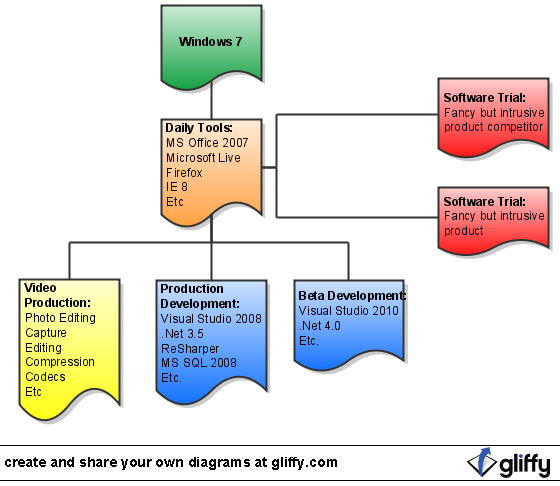
This really got my heart going.  I instantly thought of a grand hierarchy design like the following:

VHD_Original_Layout

The base Win7 VHD is the only true parent.  All the others are child differencing disks.  I could update the base Windows 7 VHD with whatever updates Microsoft would throw out and all the other VHDs would get it.  All bottom level child VHDs (video, production, test, etc) would have Office, Windows Live, etc.  It seemed like a perfect environment.

Here’s the catch.  A parent VHD cannot be changed.  If you do so, the child differencing disk will be corrupted (because the differences no longer are current) and you will loose the child VHD and all data in it.  Microsoft even recommends that you set parent VHDs to read only to protect against inadvertent changes.  Wow, that’s a real bummer.  I believe some of the enterprise level virtual vendors let you do scenarios like this across serves, thus making it easy to deploy updates and all, but that doesn’t help me.  I want to run native VHDs on my Win7 machine.  Oh well.  Scratch that.

I think technically this could be set up just for the sheer exercise, though I won’t bother to take the time to try it.

So, now that reality has stepped in how do I plan to set this up?  I’ll have a separate standard VHD per environment with no differencing disks.  A great tip from Stephen Rose during his Virtualization 101 for Developers presentation was to make copies of your base VHDs, mark them read only and put them in a backup folder.  That way if you ever want to create a new one you don’t have to start from scratch. 

So, I plan to create my base Win7 image.  I’ll put a read only copy of that into a VHD Backup folder.  I’ll then install Office, Windows Live, etc onto that image, and put a read only copy of that into the backup folder.  At this state this is my general use VHD.  I’ll make a copy of that, rename it as my video production VHD and install my video production software on that.  I’ll make a read only backup of that as well incase it gets hosed or I want to try out some fancy new video software in the future without harming my current VHD.  I’ll make another copy of my general use VHD, rename it to my production development VHD and install all my development software.  You get the idea.

When you boot off of a VHD you always have access to the base C drive (which will be a different drive letter).  So, as far as document storage there are details there I’ll have to work out.  I don’t know how security is worked out but I doubt I’ll be able to access documents in my original My Documents folder.  I’ll have to see what the best practice is out there.  I’ll probably have a generic data storage folder on the C drive that I’ll keep all of my documents in.  I only have one drive in my laptop so I can’t throw everything onto a D drive like my desktop.

Just a few tips to leave you with:

  • Backups are important!  VHDs can get quite large and so are my video files.  While most other documents are small and I can use some sort of cloud storage for my documents or versioning system for my code this won’t save me the time and hassle of losing my VHDs.  I have yet to see an online backup provider like Mozy or Carbonite that has the upload bandwidth I would require for something like this.  I’ll plan on having a couple of eSATA drives that I can back up to on a regular basis.
  • You can’t boot from a VHD on an external drive.  That’s just the way how Microsoft’s I/O mini-port driver works.  They probably did this to make sure you can’t set your laptop to boot from something that might not be there.  Plus, if your external drive got disconnected for any reason, such as a loss of power or your USB cable falling out, it might instantly corrupt your VHD.
  • If there is not enough drive space to expand your entire VHD you can’t boot from it.  For instance, let’s say you have 250GB available on your hard drive and you create VHDs that can expand to 150GB.  If over time you get to a point where you don’t have at least 150GB available to the VHD (including the current physical size of the VHD) you can’t boot into it.  Until you can get rid of some data that VHD will be effectively unbootable.  This is probably a good reason to keep your existing O/S on your system rather than having a pure VHD system. 

I’ll keep updating how it goes. 

Jan 13

Ever since virtual PC type systems have been out, long has been the dream to run any type of operating system you want, multiple operating systems at the same time, all working independently of each other.

However, only in the last year or two has this really become a reality with the latest hardware supporting virtual environments natively.  Now Windows 7 lets you boot off of a VHD as if it was a standard hard drive making full use of your actual hardware devices.

After attending Stephen Rose’s presentation on Virtualization 101 for Developers my eyes were suddenly open to the possibilities of what could be done.  I could move my entire development environment to a virtual PC image.  This would allow me to copy that image at any time allowing me to test beta products, new upgrades, etc without worrying about damaging my current environment.  Many times I have upgraded to new releases (or betas) that caused previous programs to stop running, Dlls required in legacy projects to be removed, etc.  In some rare cases (SQL Server 2008 RC2) I had to reload my entire environment because I could never get my machine back to its original state.

Now that Windows 7 allows you to boot from a VHD my wheels are suddenly turning.  I could move my entire computer use (not just development) to VHDs.  This would allow me to have a base image for general tasks like email, MS Office, etc that my wife and I could use for general day to day tasks.  I could have another environment for all my video editing work, which is especially useful since video compression codecs can sometimes cause havoc.  I could have a production development environment and as many beta environments as I want.  If I want to download a 30 day trial of any product I just create a copy of the appropriate VHD, boot off of that and try out the product.  After 30 days if I don’t like it I just delete the testing VHD and it will have never touched my production VHD.  If I do like the product I just delete the testing VHD, purchase the full copy and install it to my production VHD.  Very nice and clean.

I just purchased a new HP dv7 laptop with the Intel core i7.  So, this is the perfect time to get started.  While it is possible to wipe the drive clean and use VHDs without any core operating system at all I’ll leave the HP environment intact.  That way I can always fall back to that just in case.  If for some reason my sound stops working I doubt HP will be willing to care if I can’t reproduce it in the standard OS.

So, I’ll document how I set this up and how it works out in future blog posts.  Enjoy the ride!

Jan 25

I record the monthly presentations at the Inland Empire .Net Users Group.  I’m half way done developing the distribution area for our groups website.  This is taking a while because I have no free time!  J/K, I’m also guilty of putting in the kitchen sink.  I’m creating it so that users will have a single place for all session content including a Silverlight player for video, access to downloads such as slides and code as well as ratings and content.  Will be nice, if I ever get it done!

Anyway, back to the topic.  Is anyone interested in recorded sessions of Code Camp?  I know I sure am.  There are so many sessions by so many great speakers that it is impossible to see them all.  Why not record them and make them available after the show?

I’ve volunteered to Lynn Langit and Daniel Egan, who I know have vested interest in Code Camp, to do the work.  I just need funding for the resources.  It’s not expensive, but it’s not trivial either.  The setup I currently use for our IE .Net sessions is a VGA frame grabber from Epiphan (great equipment!), a wireless mic and my laptop.  That’s it.  Turns out when I went to the ESRI User Conference in San Diego they do the exact same thing, although they use Macs and a few mixers since they also have PA systems for the presenters.  They sell their week’s worth of presentation recordings on DVD’s for ~$400.  I’d like to make this content freely available for viewing on the web much like PDC.

This would be relatively easy.  I could get a few bodies to help set up and keep things running smoothly.

Code Camp 2009 has at most 9 simultaneous sessions.  Assuming this doesn’t grow I’d need to purchase and put together 9 recording “kits”.  If we went the “inexpensive” route, without any vendors kicking in free or discounted gear, we could probably build a kit for a little less than $1,000.  This would be for the frame grabber (VGA2USB model), a decent but inexpensive laptop, wireless mic and miscellaneous cabling gear.  We’d get 5-10 frames per second at 1024×768, which for 95% of the presentations would be adequate.  So, we’re looking at the need to finance ~$10k of equipment allowing for one spare.  Any takers? :)

Technorati Tags: ,
Jan 9

Two of the main reasons why I’ve never switched to a laptop as my main platform is performance and multiple display support.


With today’s laptop performance is almost nil.  The cost compared to desktops is almost trivial and the performance a laptop can offer these days is absolutely incredible.  Unless I am a performance nut, such as someone working in film or audio editing and you need quad-core processors, four hard drives and 8 GB of ram a laptop can usually fit all your needs these days.  If you’re a gamer they even have laptops with SLI on board (although these are still fairly expensive).


However, multiple displays has always kept me back.  I love my dual 20” displays.  I also don’t want a 17” screen on my laptop.  The whole point of a laptop to me is portability.  When I go to a presentation or a conference I don’t want to lug around a 12 pound machine and then fight for chair space when I try and open the behemoth in the audience.  So I want a lightweight laptop with a 15.4” screen.  That causes a problem when I’m home at my desk.


In the last few months USD-DVI cables have started coming out and the performance is pretty amazing.  Here’s a company allowing you to run three simultaneous displays as 1600×1200.  After a firmware update coming out in the near future you’ll get even more performance and resolution.  Amazing!


Check it out:

http://www.tomshardware.com/news/usb-dvi-lcd-display,6777.html